
In order to leverage AtScale's semantic models in your Databricks Genie use cases, you must make sure that your model is published to the Databricks Unity Catalog. In order to do so, follow these simple steps.
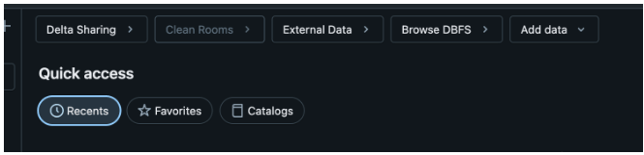
- Create an External Connection by clicking on "External Data"
Then select "Connections"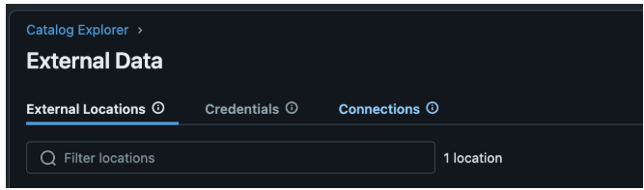
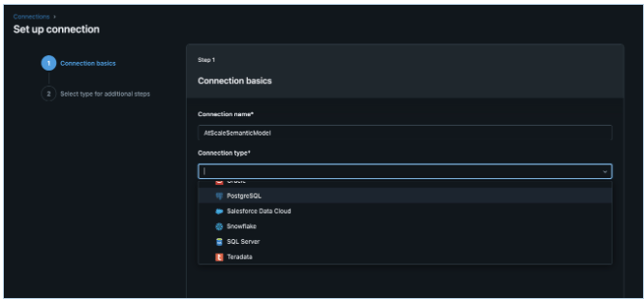
- Now you will need to provide your connection details - give it a relevant name and select Postgres from the dropdown menu
- Next - we need to get the connection details - this can all be found in the AtScale Design Center's Deployed Catalogs section
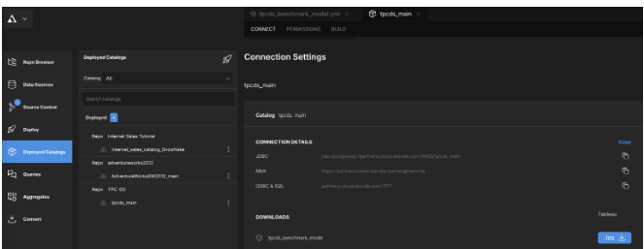
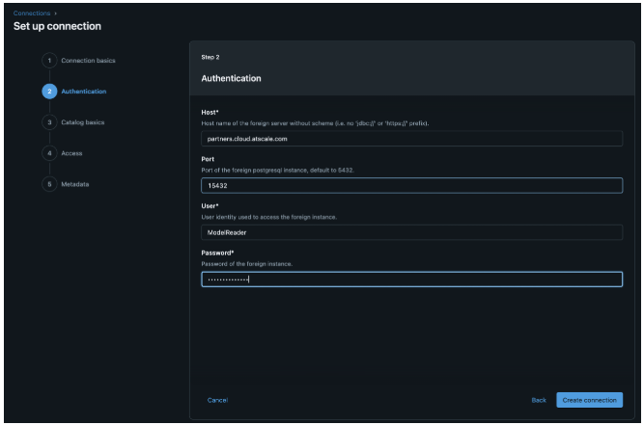
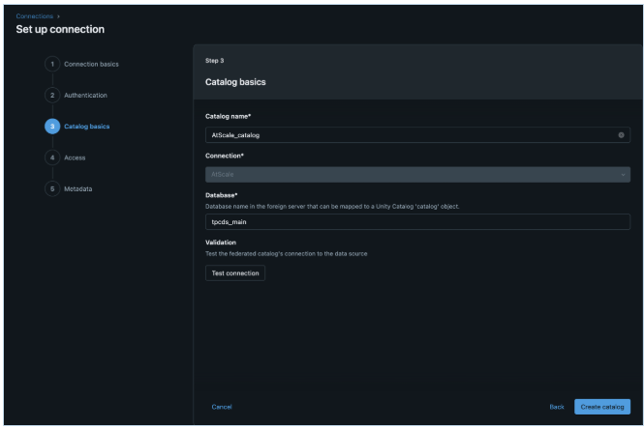
- Now we define how we want our Model(s) to be represented in Databricks Unity Catalog - we'll use our Catalog name as the Database
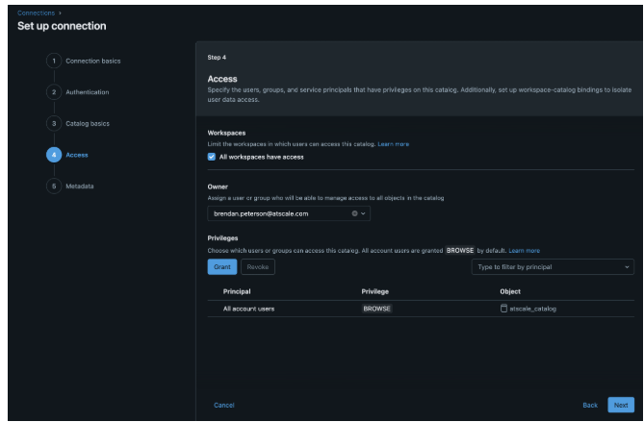
- Once created, we'll wrap up with assigning Access rules according to our policies
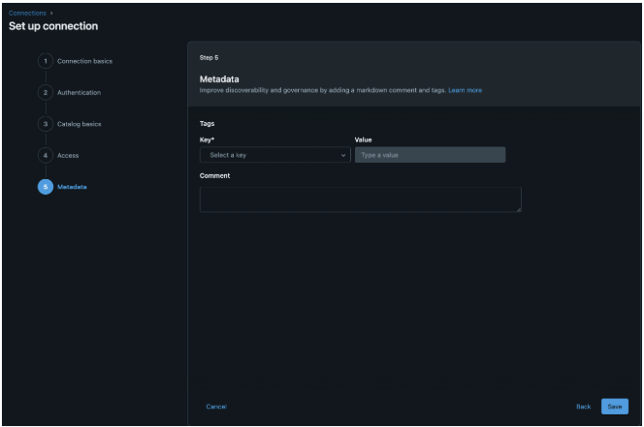
- Lastly - you can optionally add Metadata context so other Databricks users can utilize your deployed semantic models
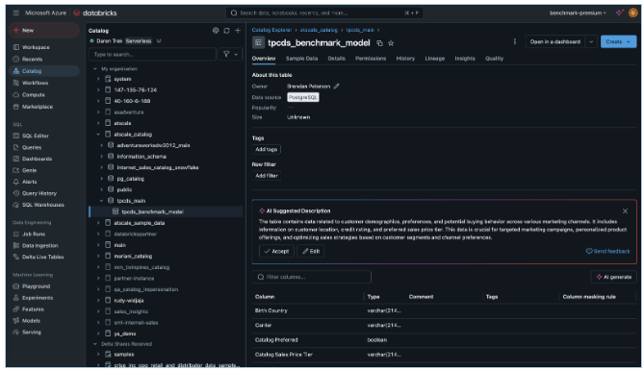
- And thats it! When you go back to view your Unity Catalog, you'll see you new Catalog and relevant database/tables which relate to our deployed Catalogs and Models! Now you simply leverage these in your Genie Workspace as you would any other table and work you magic!
And to note, here are a few tips and tricks to keep in mind in order to get the best results from your interactions with Databricks Genie
Never use LIKE or ILIKE in WHERE clauses
For states, use the name field in the WHERE clause
DO NOT EDIT THE VALUE OF ANY FILTERS PROVIDED