Scenario:
A hierarchy has a Default Member configured. When a Secondary Attribute of that hierarchy (e.g., Year2) is used in a pivot table's Row Labels, the field's filter dropdown only shows the value matching the Default Member — even though the pivot's main filter is set to “All” and the sheet itself already shows every year of data.
Solution:
Replace the secondary attribute with a Level Alias of the same level (e.g., use Year instead of Year2). A Level Alias is treated as the same hierarchy as its source level, so the Default Member is correctly skipped and the filter dropdown lists every value.
This is expected AtScale behavior given how Default Members and Secondary Attributes are each modeled — not a bug — and using a Level Alias is the recommended best practice whenever a hierarchy has a Default Member configured.
Explanation
The setup: a Default Member on the hierarchy
In this example, the StandardMonth hierarchy has “Use default member literal expression” enabled, pointing to a relative date (DateAdd("yyyy", -19, YearStartDate(Now()))). Any query that doesn't explicitly reference this hierarchy will have this default silently applied as a filter.
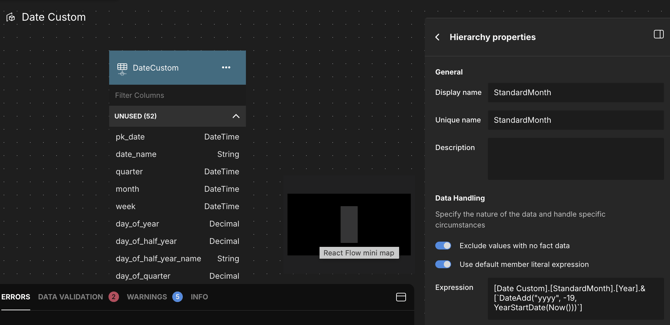
AtScale model editor — Default Member configured on the StandardMonth hierarchy
The symptom
- The pivot table's StandardMonth filter is set to All.
- Year2 — a Secondary Attribute of StandardMonth — is placed in Row Labels. The data grid correctly shows all years (2005, 2006, 2007, 2008).
- But when you click the Row Labels filter dropdown to see/select values, it only offers “Calendar 2007” — even though the sheet clearly has four years of data.
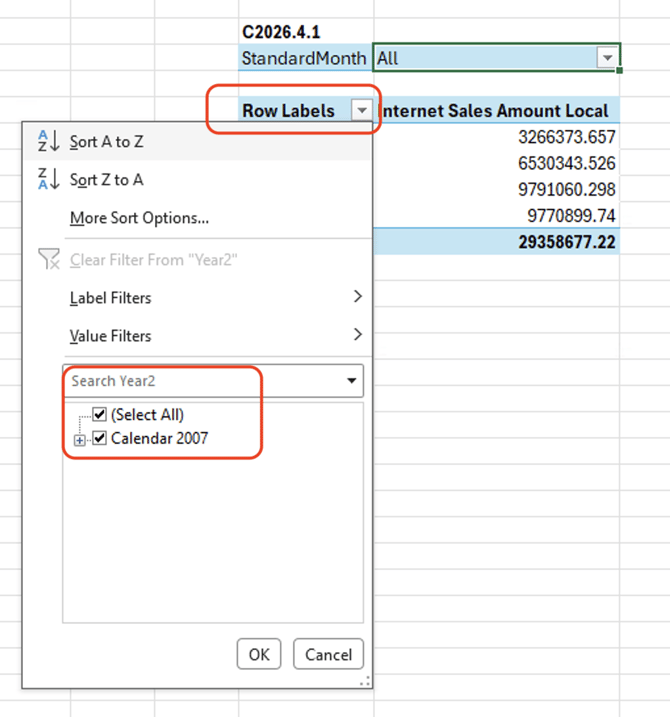
Row Labels filter dropdown only offers “Calendar 2007” despite four years of data on the sheet
Why this happens
- Default Members apply automatically. When a Default Member is set on a hierarchy (and “Apply only when in query” is not checked), AtScale applies that value as a filter to any query that doesn't explicitly reference that hierarchy.
- Secondary Attributes are their own hierarchy. Unlike a Level Alias, a Secondary Attribute is modeled internally as a separate hierarchy from its source level. A query built only around the secondary attribute doesn't count as “referencing” the source hierarchy — so the Default Member filter gets applied.
- Excel doesn't pass along your filter selections. When you click the Row Labels filter dropdown, Excel sends AtScale a query asking for all members of that field, without including any of the other filters set on the pivot table. So even though the main filter says “All,” that selection never reaches the query that populates the dropdown list.
Put together: the dropdown's query never mentions the source hierarchy, so the Default Member silently narrows the result — regardless of what's filtered elsewhere, and regardless of what the sheet itself is already displaying.
When you'll run into this
You're likely to see this when all of the following are true:
- A hierarchy has a Default Member configured (not restricted to “Apply only when in query”).
- You're using a Secondary Attribute (not a Level Alias) built from a level in that same hierarchy — commonly in Row/Column Labels of a pivot table.
- The report or tool (e.g., Excel) queries that field's member list without also passing along the pivot table's other filter selections.
This isn't limited to dates — it can happen with any hierarchy that has a Default Member and any secondary attribute drawn from it.
The solution, in detail
Replacing the Year2 secondary attribute with a Year Level Alias in Row Labels fixes it immediately — the filter dropdown now correctly lists every year (2000–2007 and beyond), because AtScale treats a Level Alias as the same hierarchy as its source level, so the Default Member is correctly skipped.
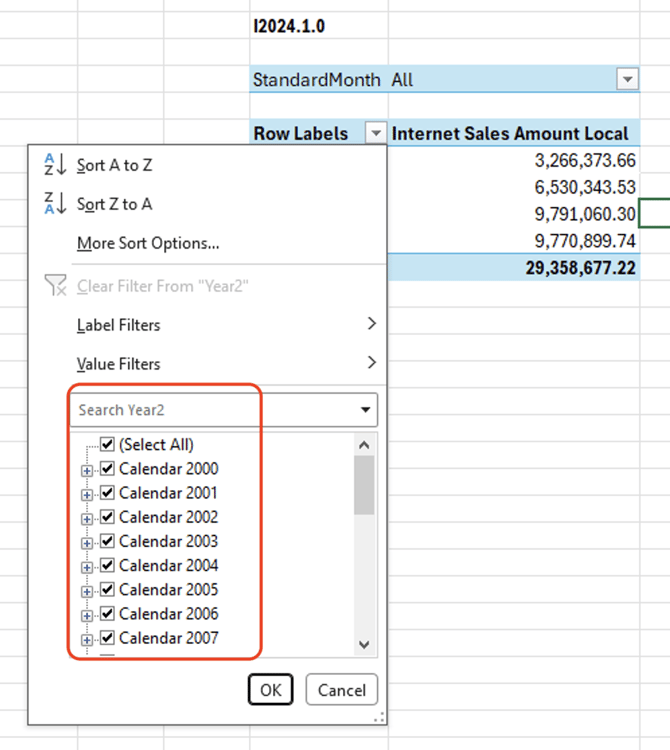
After switching Row Labels to the Year level alias, the filter dropdown lists every year
Steps:
- Identify the secondary attribute causing the issue (e.g., “Year2”).
- In the data model, create a Level Alias pointing to the same underlying level (e.g., an alias for Year under the same hierarchy container).
- Replace the secondary attribute in your report/pivot table with the new level alias.
- Re-test — the field's filter list should now show all values correctly, regardless of the Default Member setting.